> For the complete documentation index, see [llms.txt](https://manual.selarti.com/llms.txt). Markdown versions of documentation pages are available by appending `.md` to page URLs; this page is available as [Markdown](https://manual.selarti.com/manual-en/main-sections-of-the-service/channels/connecting-telegram-accounts-via-telegram-desktop-tdata.md).
# Connecting Telegram accounts via Telegram Desktop (TDATA)
*This article explains how to connect a Telegram account in TDATA format. This setup method is convenient when working with multiple Telegram accounts and for connecting a large number of accounts as a communication channel in Selarti for outbound communication.*
You will need:
* An account in TDATA format.
* A proxy server from the country where the Telegram account is registered.
* The Proxifier program.
* The portable version of Telegram Desktop.
### Preparation for connection
1. Purchase a Telegram account on an exchange. Exchanges provide accounts as a txt file. Copy the link from the file, open it in a browser, download the archive to your computer. One link equals one account. You need an account only in TDATA format that contains a «tdata» folder in the archive. The Session + JSON format is not suitable for connection.
2. Purchase a proxy. The Telegram account is registered to a phone number of a specific country — buy a socks5 proxy from the same country. The proxy is provided as IP:port:login:password. One proxy is intended for connecting one Telegram account. More about [proxy](/manual-en/additional/proxies-for-telegram-cloud.md).
3. Install the [Proxifier](https://www.proxifier.com/). It will allow you to replace the computer's IP address with the purchased proxy.
4. Install the portable version of [Telegram Desktop](https://desktop.telegram.org/). The TDATA format works only in the portable desktop version of the Telegram messenger on a PC. This format is not suitable for mobile devices.
### Activating the proxy in Proxifier
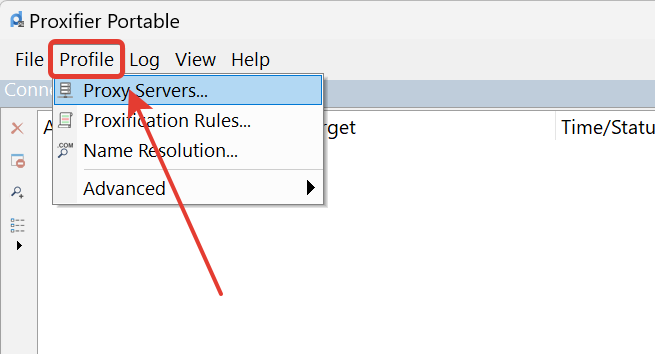
Launch Proxifier, go to «*Profile*» and select «*Proxi Servers*».
In the window that opens click «*Add*».
In the «*Adress*» field specify the IP address of the purchased proxy, in the «*Port*» field enter the port of that proxy. In the «*Protocol*» field choose the connection type «*SOCKS Version 5*».
In the «*Authentication*» section check «*Enable*» — authentication will be enabled and active fields for entering the proxy login and password will appear. Fill them in and click «*OK*».
Then click «*Yes*» to use the proxy by default.
Click «*OK*» to confirm enabling the proxy.
Check the IP address via the site [2ip.ru](https://2ip.ru/) — with the correct setup the IP address will have changed to the one specified in the program settings.
### Logging into the Telegram account
Unpack the archive with the received Telegram account. Usually there is a folder with the number in the archive.\
Open the unarchived folder and copy the «*tdata*».
{% hint style="warning" %}
Sometimes the account folder may additionally contain text files «2FA» (two-factor authentication) with the account password. The password may also be located inside the «tdata» folder.
{% endhint %}
Open the root folder of the installed Telegram Desktop program and paste the copied «*tdata*».
Launch Telegram Desktop. If the setup is correct and the account is valid — the account will open immediately.
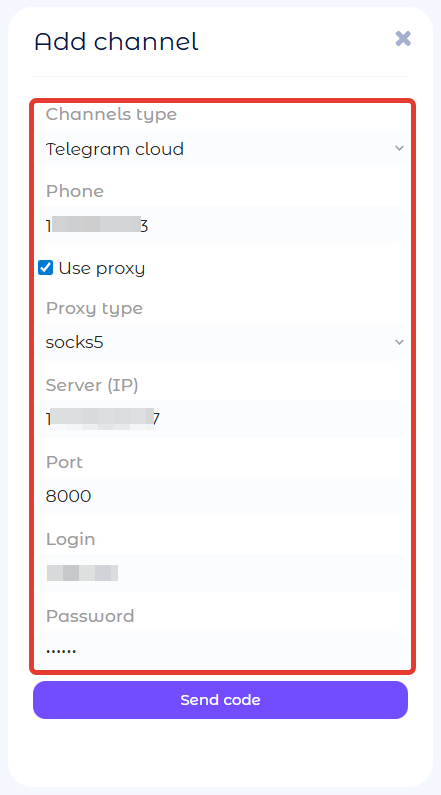
Next, link the account to Selarti by adding a channel and entering the obtained proxy data in the «*Use proxy*» field. More about [adding a channel](/manual-en/main-sections-of-the-service/channels.md).
If you have a large number of accounts, we recommend performing additional setup (changing profile data, enabling Telegram Premium) later in Telegram Web. At the end of the article we will cover logging into the web version of Telegram for these purposes.
### Finishing work with the account
1. After successfully adding the channel, completely close Telegram Desktop:
* for Windows or Linux use the Ctrl+Q keyboard shortcut
* for macOS use the Command+Q keyboard shortcut
* or select Telegram Desktop in the computer's control panel and click «*Close Telegram*»
{% hint style="warning" %}
Simply clicking the «X» button will not fully close the program; it will close the active window while the program itself will continue to run in the background.
{% endhint %}
2. Delete the inserted «tdata» folder from the Telegram folder.
3. Disable IP proxying on the computer via Proxifier by changing or removing the rule in the program settings.
Repeat the actions for each new Telegram account.
### Additional configuration of the Telegram account
In Selarti go to the «*Channels*» section to see the linked Telegram accounts and their phone numbers.
Open a browser window in «*Incognito*» mode and go to [*Telegram Web*](https://web.telegram.org/).
Click «*Log in by phone number*».
Specify the country and the phone number of the selected account. Click «*Next*».
A code will be sent from @selarti\_bot to the personal messages of the Telegram account administrator of Selarti. Enter it in the browser window that opens in the «*Code*».
If two-factor authentication is enabled — enter the 2FA in the next window. The account will open.
What you can do after logging into the web version:
* Change the photo, name.
* Purchase Telegram Premium.
* Perform other settings.
After finishing, log out of the account.
Repeat the necessary settings in the web version for each new Telegram account.
### Restrictions when configuring accounts
It is forbidden to change the proxy and the computer's IP address while the Telegram account is open.
It is forbidden to connect different Telegram accounts without changing the proxy and IP address.
Otherwise the accounts will be considered suspicious and linked, which will increase the risk of one or all of these accounts being blocked later.