> For the complete documentation index, see [llms.txt](https://manual.selarti.com/llms.txt). Markdown versions of documentation pages are available by appending `.md` to page URLs; this page is available as [Markdown](https://manual.selarti.com/manual-en/main-sections-of-the-service/channels/iframe-and-page-messenger.md).
# Iframe and page messenger
*You can add an AI agent to your website or widget using the page messenger communication channel.*
## Iframe | Page messenger
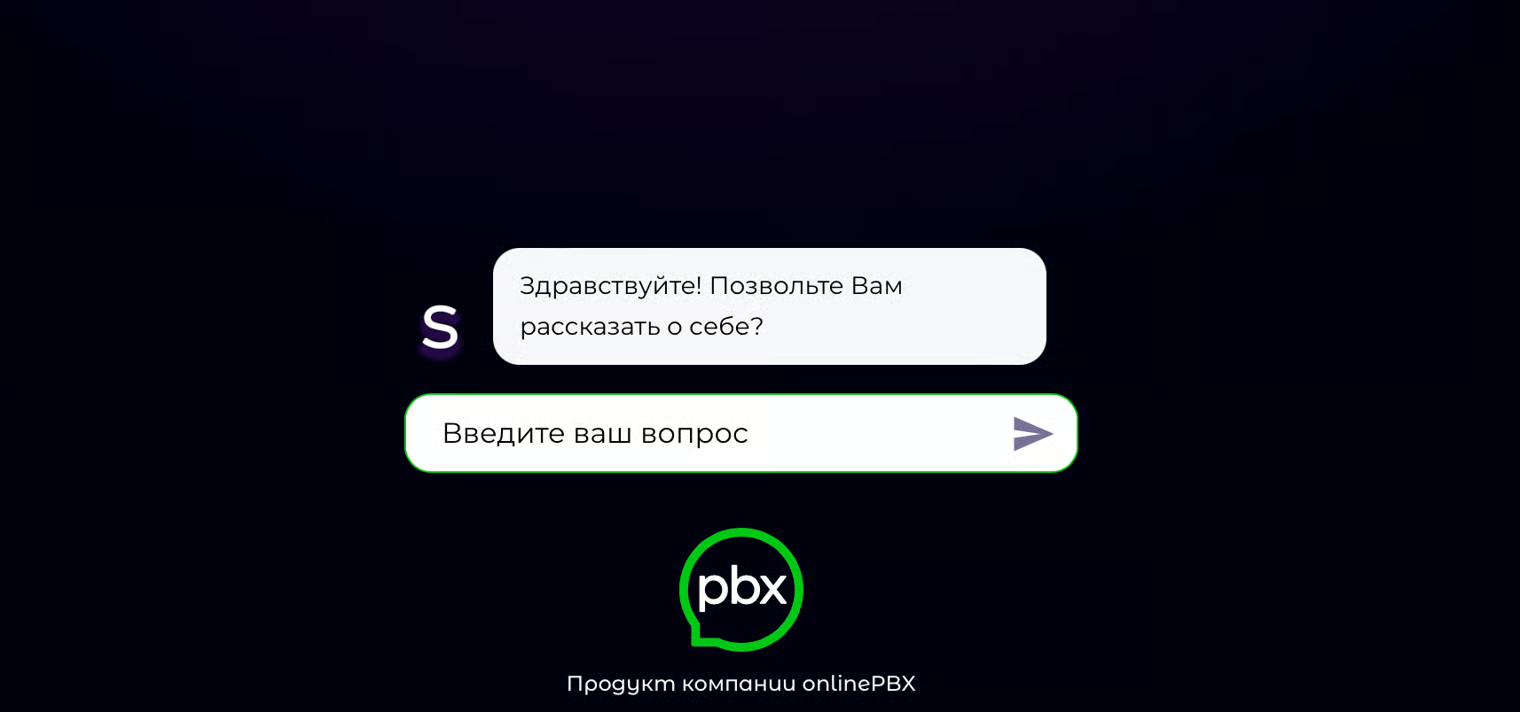
The «Iframe» communication channel allows your AI agent to interact with users directly on your website, as shown in the screenshot below.
The «Page messenger» communication channel can be used to create a convenient widget that will be available on your website via a URL link ([example](https://selarti.com/frame?channel=1721200588620x979462968088199200)).
### **Step 1. Creating a channel**
To create a channel, go to the «[*Channels*](https://selarti.com/panel?menu=channels)*»* section and click «*Add channel*» in the upper right corner of the screen.
A creation form will open. You need to fill in the following fields:
* **Select channel type** — in the dropdown you can select «Iframe» or «Page messenger».
* **Channel name** (Channel name) — enter a name for your channel.
* **Placeholder** (Placeholder) — enter the text that will be displayed in the input field name. You can leave the field empty.
* **Initial content** (Initial phrase/greeting) — enter the text that will be displayed in the field at the start of the dialog. You can leave the field empty.
* **Img** (Image) — upload an image that will be the avatar of your AI agent.
Click «*Add channel*»*.*
Next, click on the created channel, copy the iframe code, and paste it into your website's page code.
For the «Page messenger» channel, simply copy the URL.
### **Step 2. Creating a task**
To activate the AI agent, you need to create a task.
On the left, go to the section «[*Tasks*](https://selarti.com/panel?menu=tasks)» section and click «*Create task*»*.*
A form for configuring the task will open. You need to fill in the fields:
* **Name** — specify the task name.
* **Type** — select the task type «*Web*».
* **Dialog spending limit ($)** — set a spending limit per dialog in dollars.
* **Service operation format** — select the type «*Incoming communication*»*.*
* **Add channels** — in the dropdown menu, select the Iframe channel or Page messenger channel you created.
* **Select AI** — select the AI that will be used to perform the task. More about creating AI in this [article](/manual-en/main-sections-of-the-service/ai.md).
* **Select integration** — specify the integration through which information about successful chats will be transmitted. More about setting up integrations in [article](/manual-en/main-sections-of-the-service/integration.md).
{% hint style="warning" %}
If you plan for the AI agent to initiate the dialog, select an AI with the communication type «*Incoming and outgoing communication*».
To respond only to incoming messages, select an AI with the communication type «*Incoming communication*».
{% endhint %}
After filling in all the form fields, click «*Create task*»*.*