> For the complete documentation index, see [llms.txt](https://manual.selarti.com/llms.txt). Markdown versions of documentation pages are available by appending `.md` to page URLs; this page is available as [Markdown](https://manual.selarti.com/manual-en/main-sections-of-the-service/chats.md).
# Chats
*The «Chats» section allows you to view and manage conversations handled by your AI agent.*
## Overview
In your Selarti personal account, go to the «[*Chats*](https://selarti.com/panel?menu=chats)*»*.
## Filtering conversations
**Filters** are located in the upper-left part of the screen. They make it easier to manage conversations:
* **By tasks**. You can select a specific task from the dropdown list to view only those conversations related to that task.
* **By conversation status**. Ability to filter conversations by various statuses:
1. All dialogs (default).
2. 🏆 **Successful dialog.** Conversations where a meeting was arranged, interest was shown, or contact details were obtained for further communication.
3. 📝 **Contacts received.** Conversations where the user's contact details were obtained.
4. 💡 **The is Interest.** Conversations where the user showed interest in the product or service
5. 🔐 **Dialogue closed.** Conversations in which the user refused further communication.
6. 🤖 **Defined as robot.** Conversations in which the user was identified as a bot.
7. 🙋♂️ **User replied.** Conversations in which a reply was received.
8. 👨💻 **Handled by operator**. Conversations that were transferred to an employee.
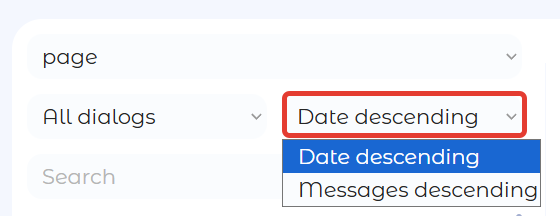
For convenience, you can also **sort** conversations by the following criteria:
* **Date descending**. Conversations sorted by date in descending order. Allows you to see the most recent conversations at the top of the list.
* **Messages descending**. Conversations sorted by the number of messages in descending order. Helps quickly find conversations with the most activity and messages.
You can also **search**. The search bar allows you to quickly find a conversation by the customer's name or by the text of a message. Enter the required text in the search field — conversations matching your query will be displayed automatically.
## Viewing conversations
On the left side of the screen, a list of conversations with brief information is displayed:
* Client name.
* Conversation status (indicated by emoji).
* Text of the last message.
* Date of the last message.
* Number of messages in the conversation.
When you click on a conversation, the full conversation history is displayed on the right, including all sent and received messages.
## Managing conversations
**Continuing a conversation with a user.** You can communicate with the customer directly in the conversation. For more information, see [in a separate article](/manual-en/main-sections-of-the-service/chats/how-to-intervene-in-a-conversation-between-the-bot-and-the-client.md).
**Chat menu.** The menu (three horizontal lines) in the upper-right corner of an open conversation provides actions for the current conversation:
* **Conversation cost.** Displays the cost of processing the selected conversation.
* **Changing the conversation status.** To change the conversation status manually, select the required status. After selecting the status, make sure to save the changes.
* **Custom context.** You can add additional context that will be applied specifically to this conversation. To do this, select the «сustom context» field, enter the required information or instructions in the text field, and save them.\
This context supplements the main prompt and allows the AI to take the customer's personal information into account when generating responses. For example, you can provide the customer's preferences, age, region, or any other relevant information. The entered information is added to the conversation's overall context and is taken into account when generating responses.
**Deleting a conversation.** You can permanently delete a conversation along with its entire message history and context. To do this, click the trash can icon in the upper-right corner of the open conversation.
Then click *«Delete»* in the window that opens.
The conversation is deleted immediately on the Selarti side. The context is deleted from OpenAI within three days. Deleting a conversation allows you to restart the conversation in the channel from the beginning by clearing the history of the previous communication. When a conversation is deleted, dashboard statistics (the number of messages and conversation costs) are retained for overall reporting.
**Sharing a conversation.** To share a conversation, click the icon in the upper-right corner of the open conversation. The conversation link is automatically copied to the clipboard. The conversation can be viewed in real time using the shared link, and all changes and new messages are displayed automatically.
**Exporting a single conversation.** To download a CSV file containing the selected conversation, click the button with the sheet (CSV) icon in the upper-right corner.
**Exporting multiple conversations.** To download multiple conversations, click *«Export»* above the chat list.
Select a specific task or all available tasks and specify the period for which you need the conversations. If necessary, select the checkboxes to include metadata in the download (this may be required when working with the API) or change the order of chats in the file. Note that you can also select the number of chats to export, with a maximum of 100 chats. Then click «*Export»*.


.png?alt=media&token=65f4e16f-716f-4ae9-8729-4d7a324b422c)


.png?alt=media&token=c4eafa10-6b41-4748-908b-24802ad24ec9)
.png?alt=media&token=9b6ea35a-dc2c-4c83-9c19-2e12e44f2eab)

