> For the complete documentation index, see [llms.txt](https://manual.selarti.com/llms.txt). Markdown versions of documentation pages are available by appending `.md` to page URLs; this page is available as [Markdown](https://manual.selarti.com/manual-en/external-integrations/integration-using-the-zapier-service.md).
# Integration using the Zapier service
[*Zapier*](https://zapier.com/) *— a service for automation and creating integrations. It allows combining functions of different products, optimizing workflows and setting up integrations without involving developers.*
### Setting up integration in the Zapier dashboard
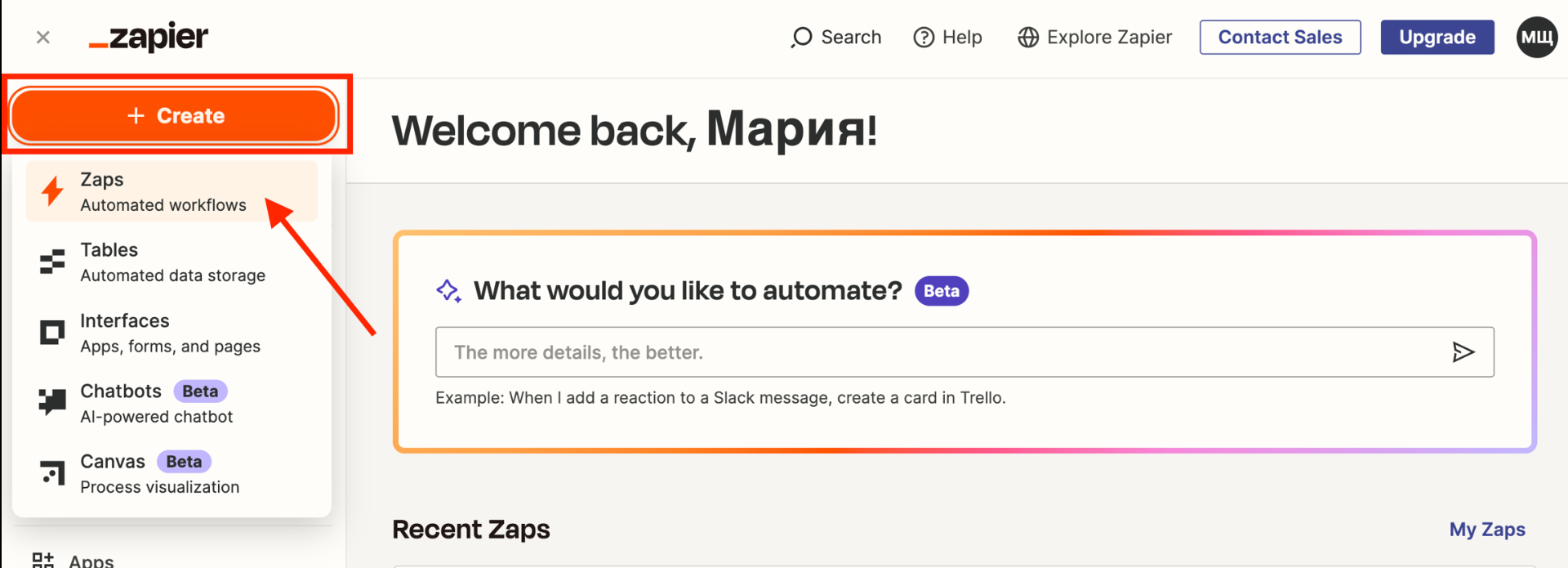
1. Register [in the Zapier service](https://zapier.com/). On the main page select «*Create*» and click the «*Zaps*».
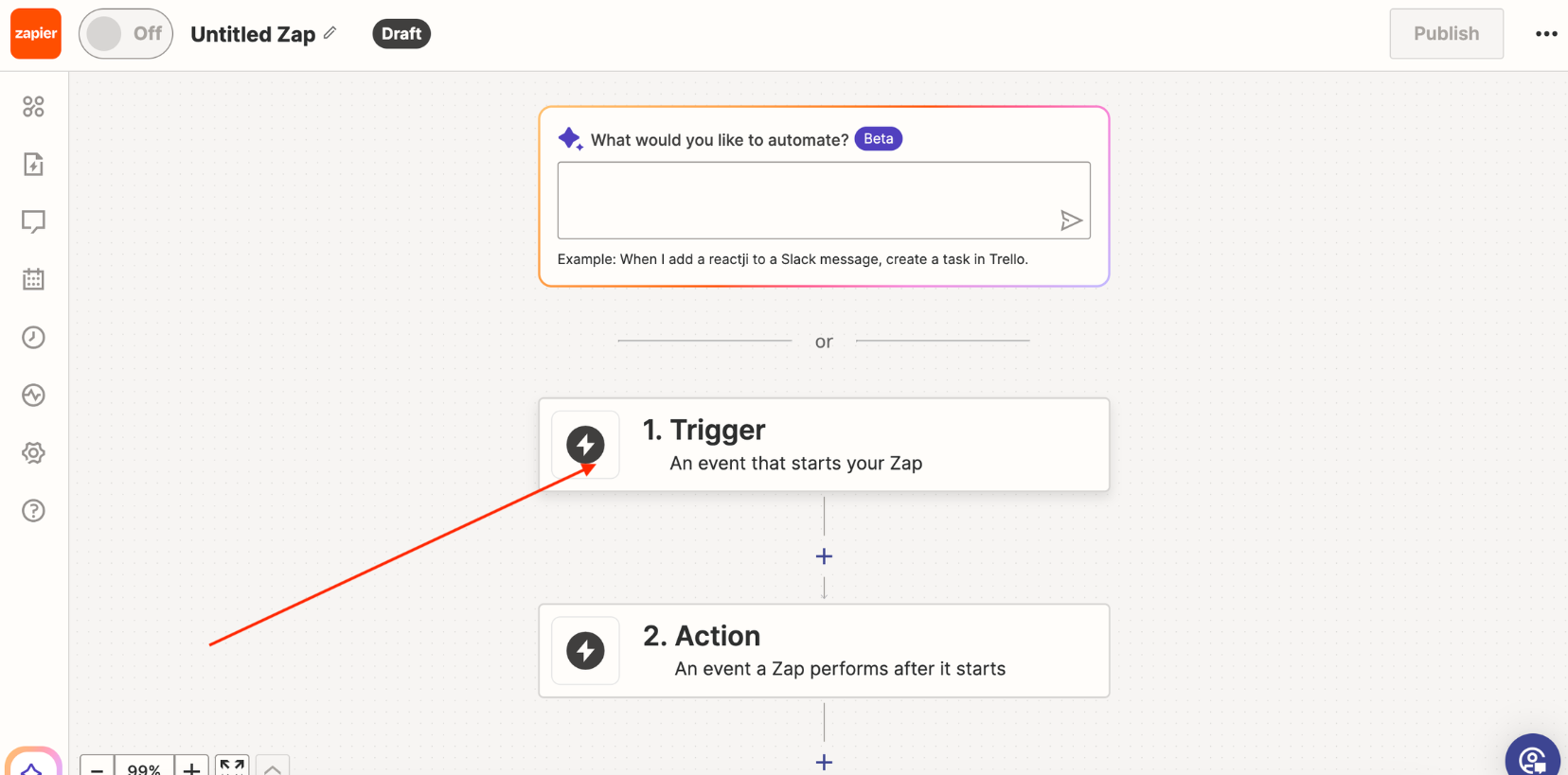
Click «*Trigger*».
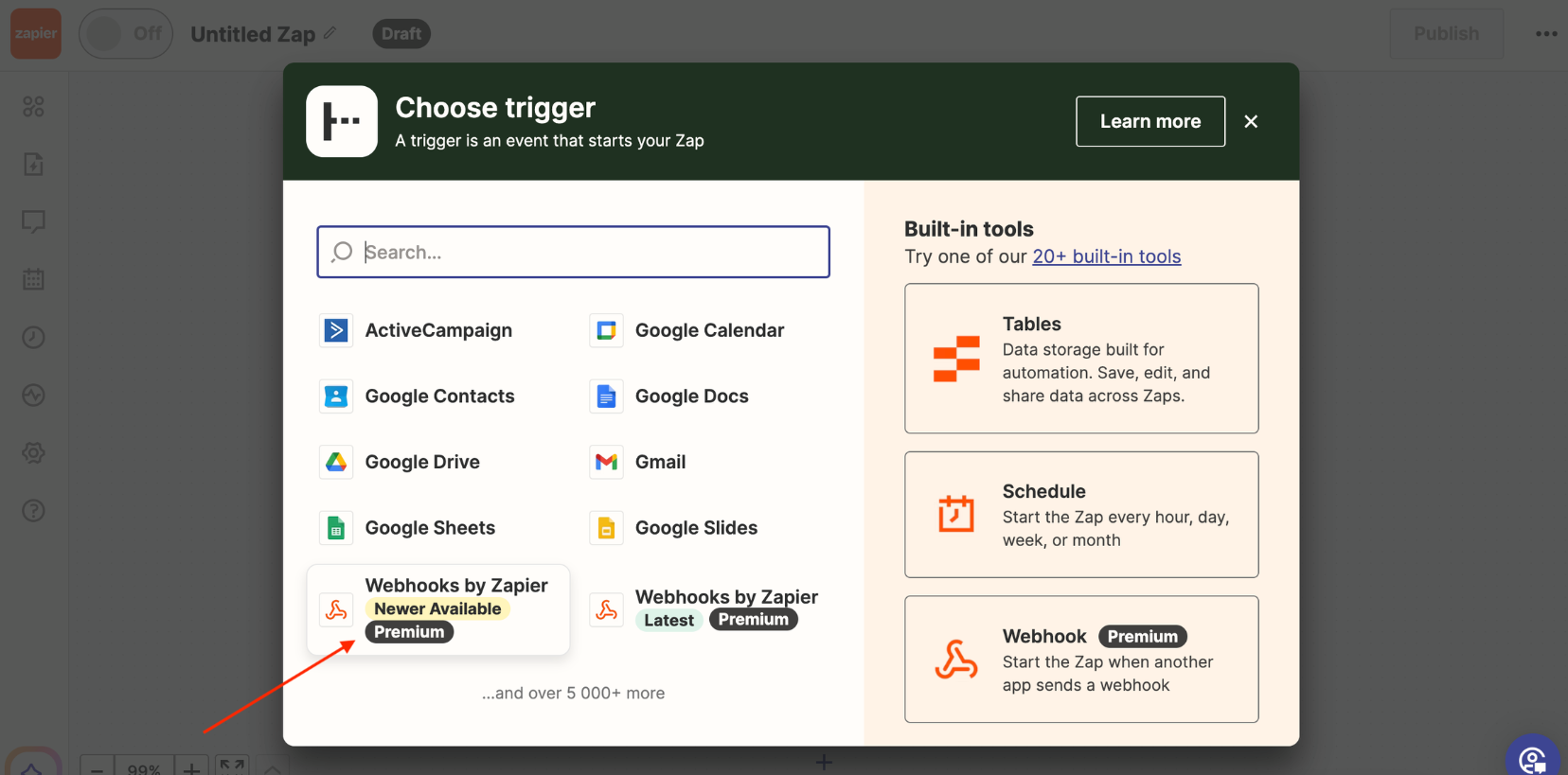
Select the connection type «*Webhooks by Zapier*».
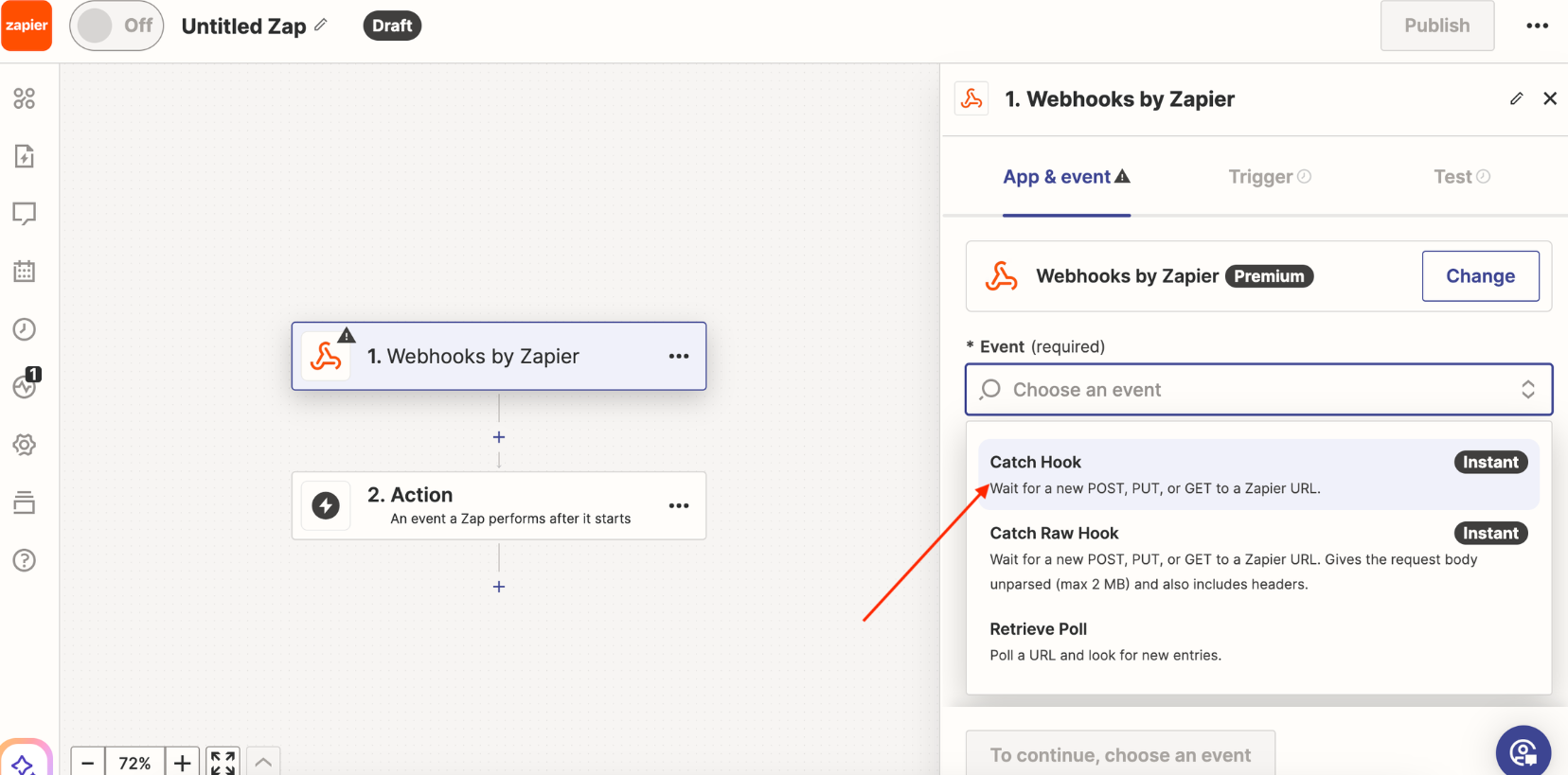
Then in the menu on the right choose «*Catch Hook*».
Click «To continue» and in the «Trigger» tab also click «To continue».
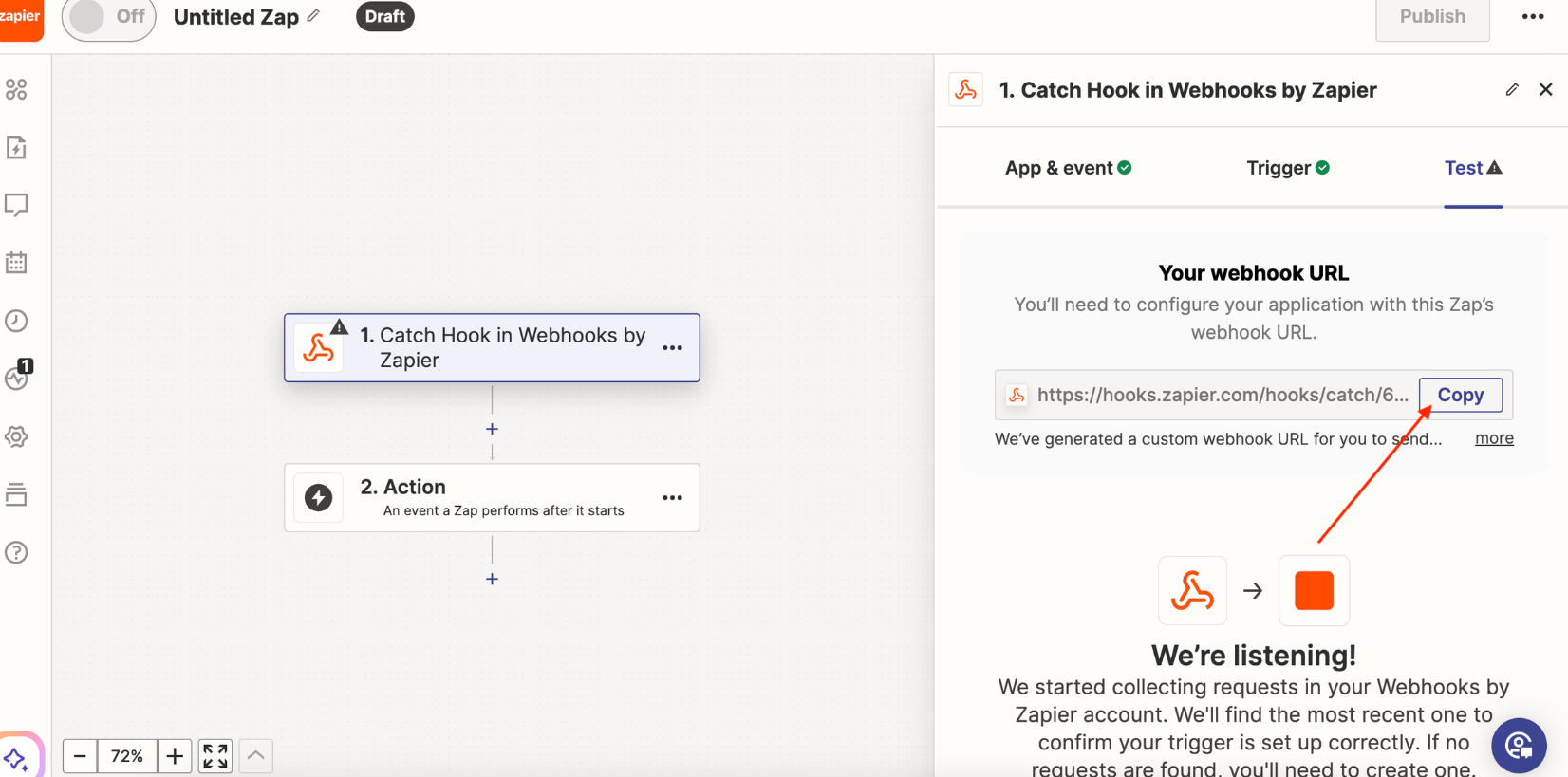
Copy the created link. To do this click «*Copy*».
### Setting up integration in the Selarti dashboard
1. Go to the Selarti dashboard, on the left select «[*Integration*](https://selarti.com/panel?menu=integration)», click the «*Create integration*». Choose the type «*Zaiper*».
2. Specify your name, then paste the link copied from the Zapier dashboard. Click «*Send test webhook*».
If you did everything correctly, the entered link in Selarti will be highlighted in green.
3\. Select the required trigger types from the dropdown list «*Select webhook type*» and click «*Create integration*».
### Creating an action in Zapier
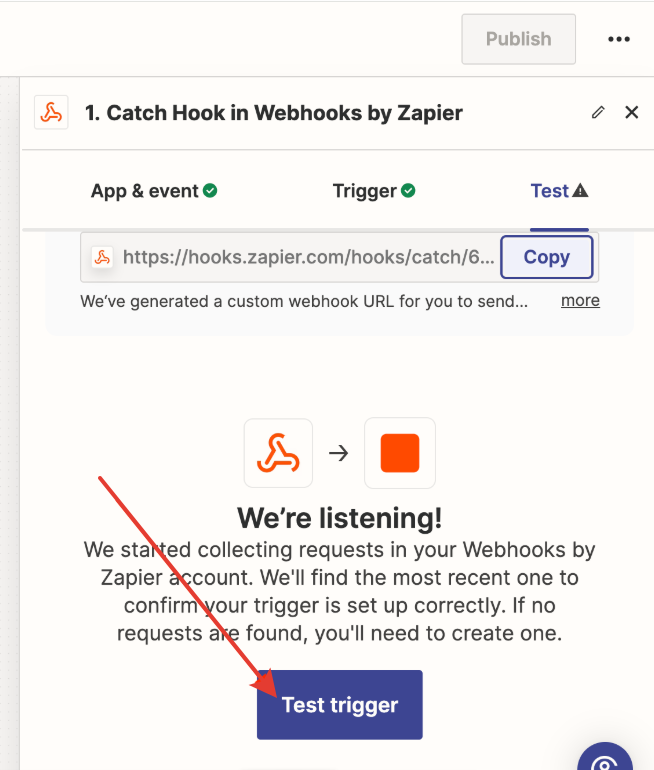
Return to Zapier and check the trigger — click «*Test trigger*».
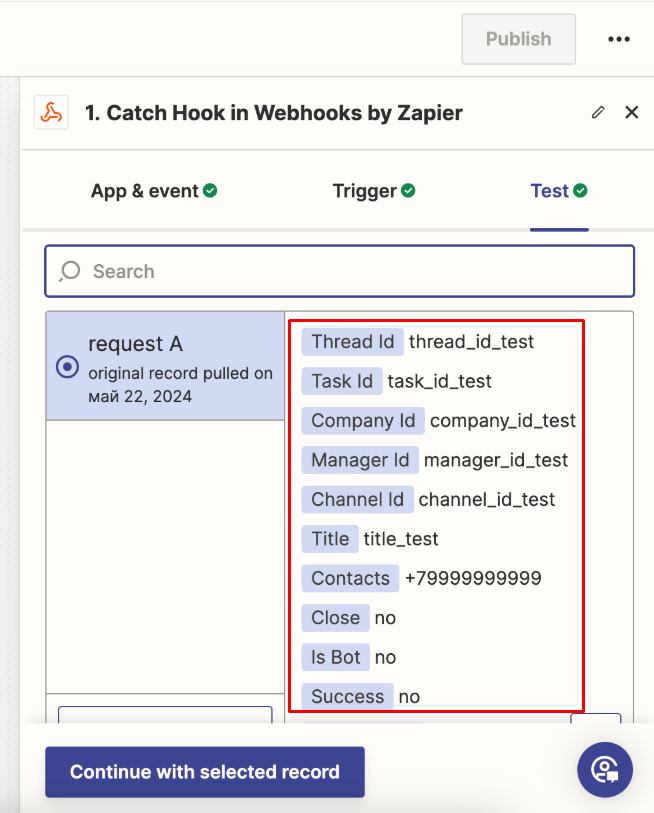
If you did everything correctly, available fields will appear in Zapier.
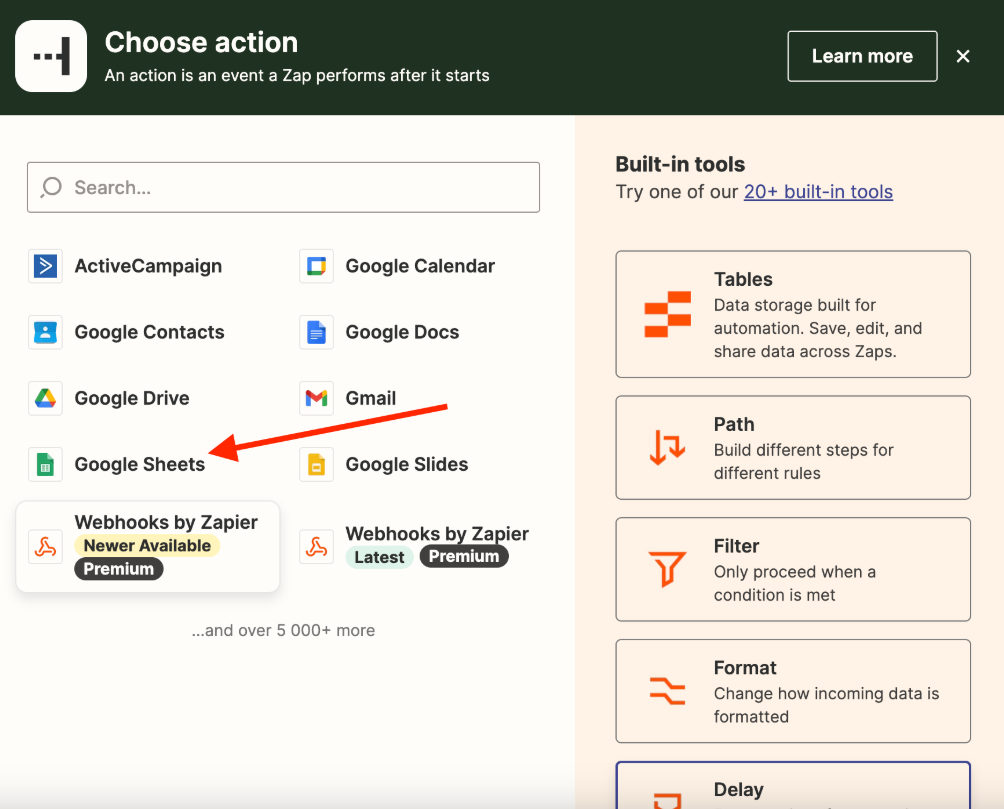
Create an action. There can be many options; Zapier supports a large number of actions.
### Example of configuring data transfer to Google Sheets
In the menu select «*Google Sheets*».
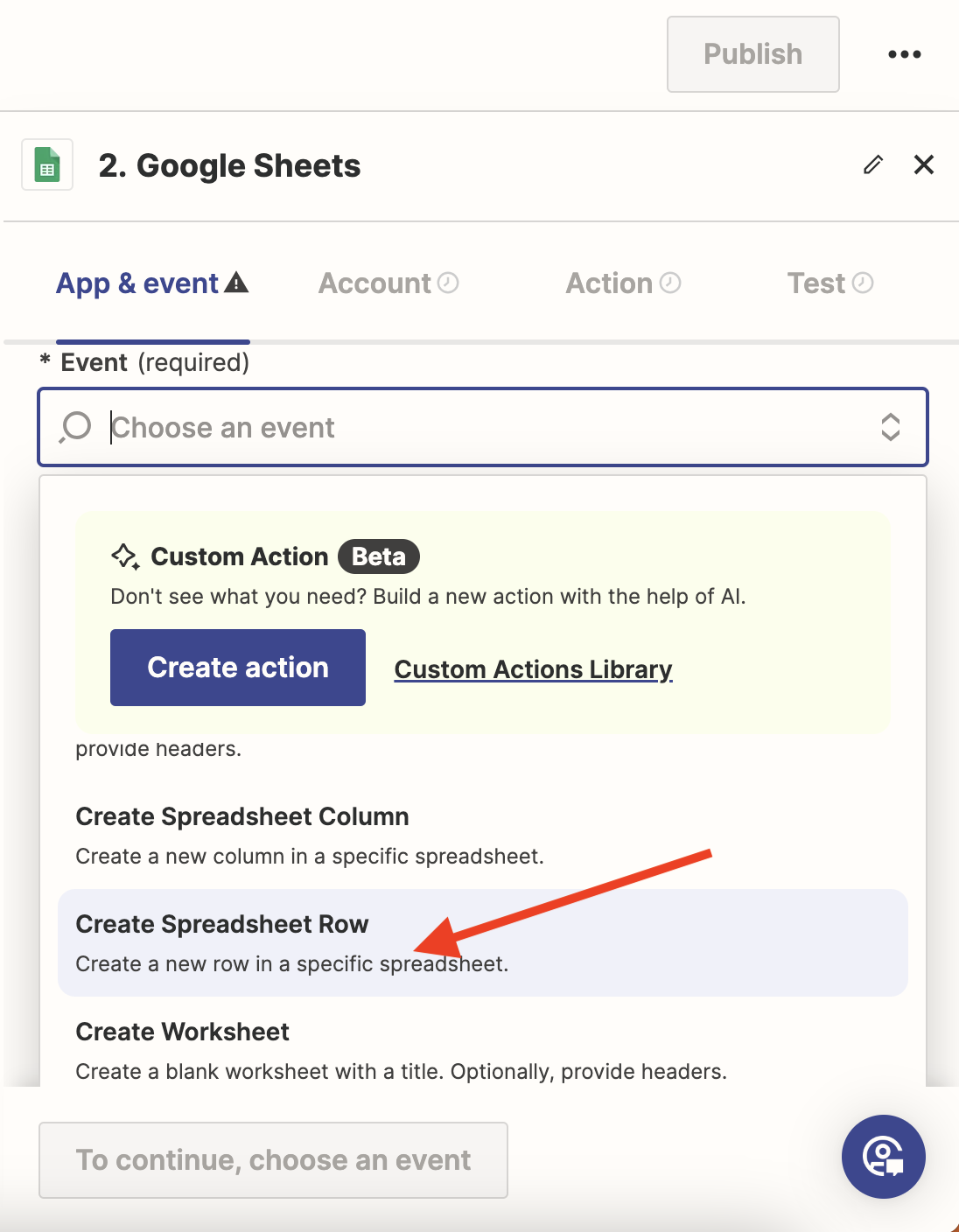
Then select the action «*Create Spreadsheet Row*» — adding a new row to the spreadsheet.
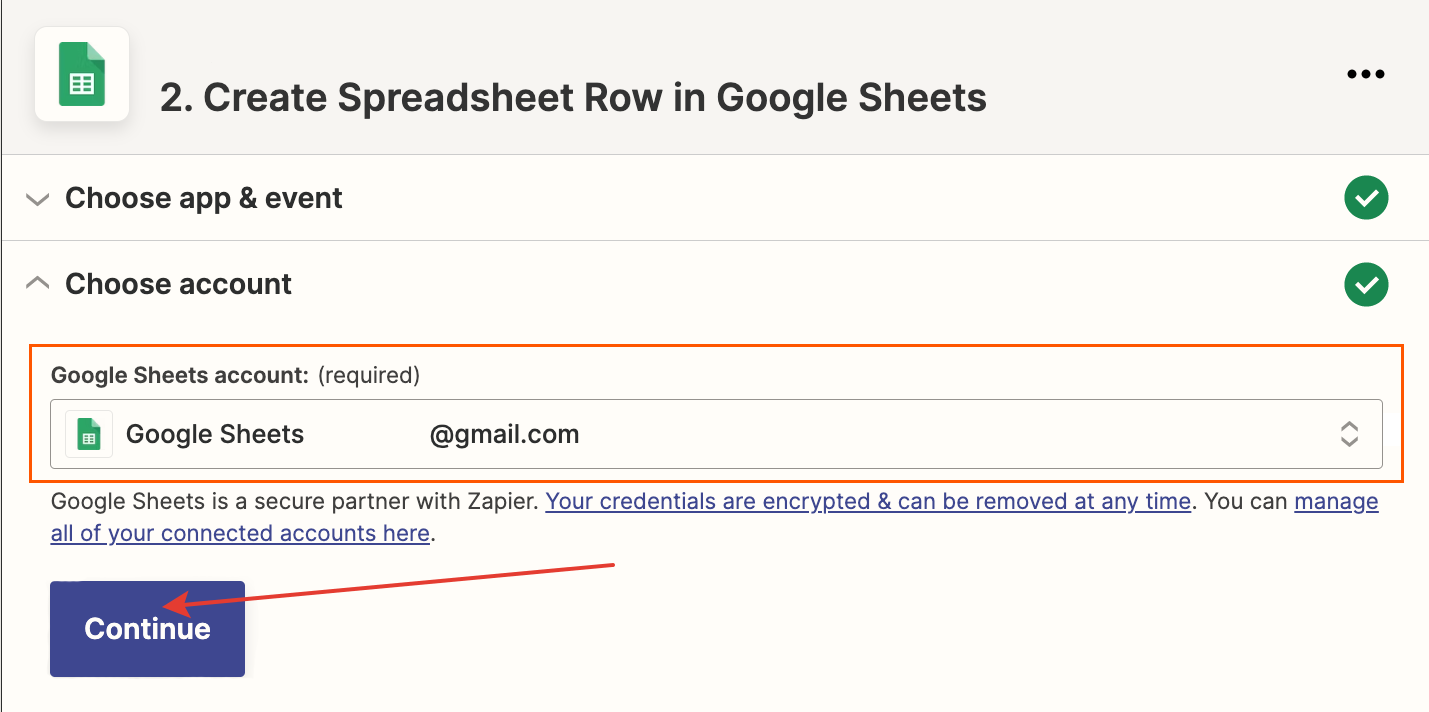
Authorize with your Google account.
Select your Google account and click «*Continue*».
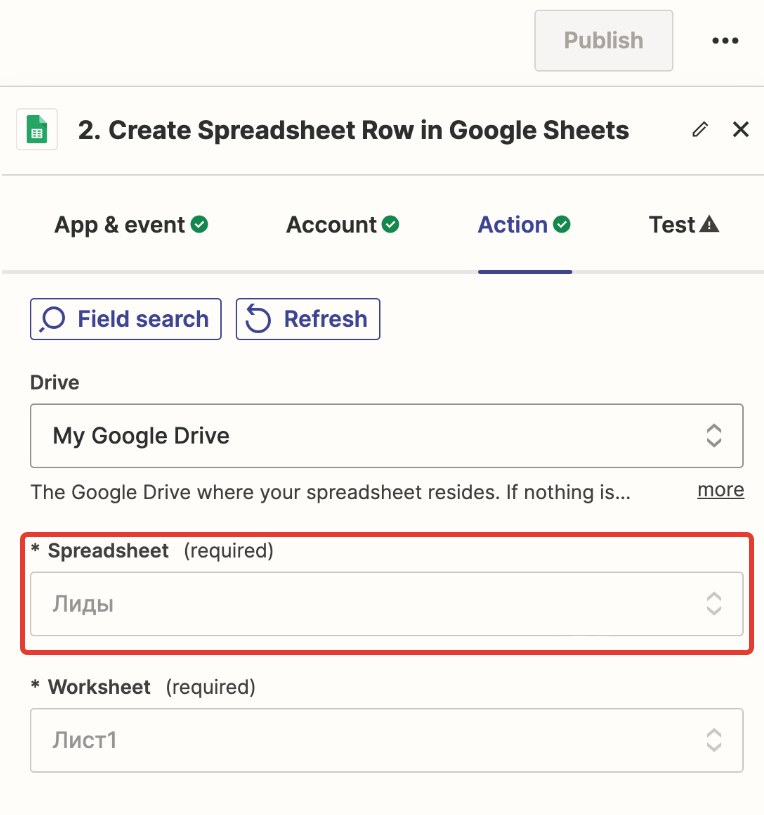
In the field «*Spreadsheet*» choose the spreadsheet where you plan to collect leads.
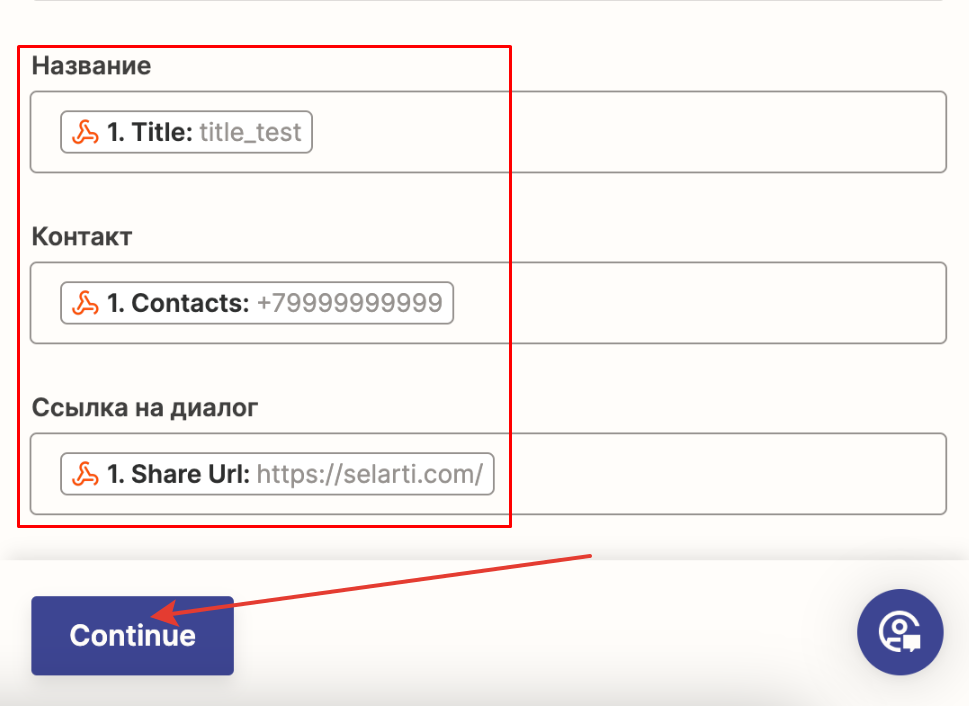
Select the values you want to pass to the spreadsheet and click «*Continue*».
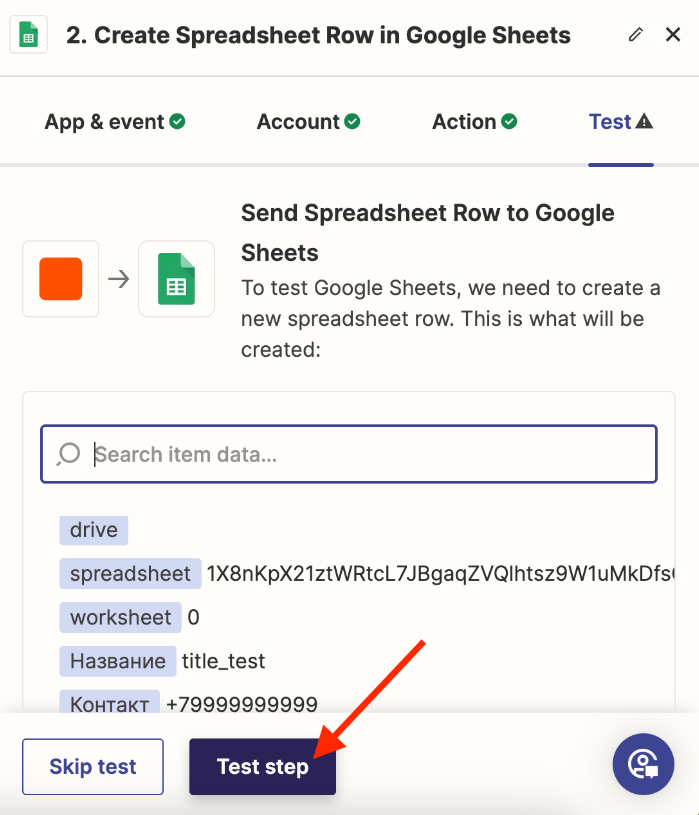
Run a test — click the button «*Test step*».
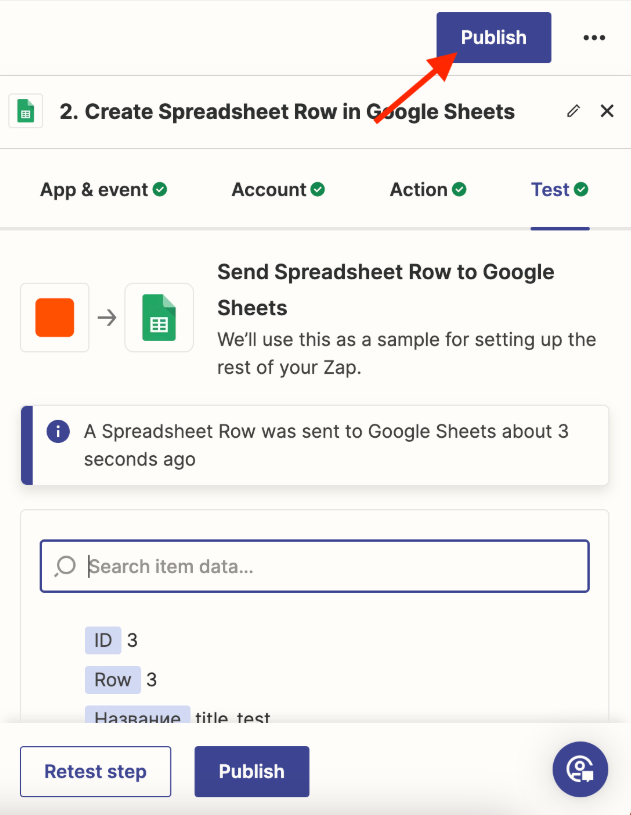
After configuring actions and a successful test click the «*Publish*».
### Description of webhook fields
**`title`** - Dialog title (First Last/profile name)\ **`contacts`** - Counterparty contacts. Phone, username\ **`success`** - AI agent marked the dialog as successful (yes/no)\ **`get_contact`** - AI agent obtained additional contacts of the counterparty (yes/no)\ **`close`** - Dialog closed (yes/no)\ **`is_bot`** - Dialog identified as a bot (yes/no)\ **`share_url`** - link to view the dialog\ **`company_id`** - company id\ **`task_id`** - task id\ **`thread_id`** - dialog id\ **`dialog`** - AI dialog with the user text
We can add additional fields from the list of standard ones. If you believe there are fields that are needed by all clients — write to [support](https://t.me/selarti_support_bot).
You can add custom fields for yourself using [custom API](/manual-en/main-sections-of-the-service/ai/ai-functions.md).